


ZArchiver
4.215.31K Reviews
App Specs
- Version
- 1.0.10
- Updated On
- License
- Free
- Downloads
- 100,000,000+
- Developer
- ZDevs
- Categories
- Tools
- Platform
- Android, iOS
Screenshots
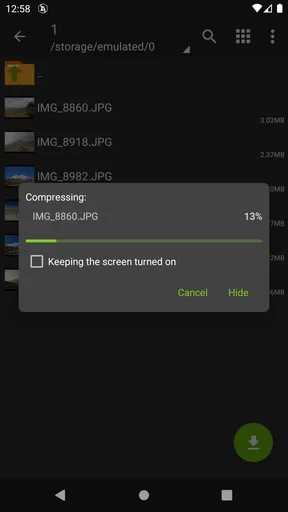
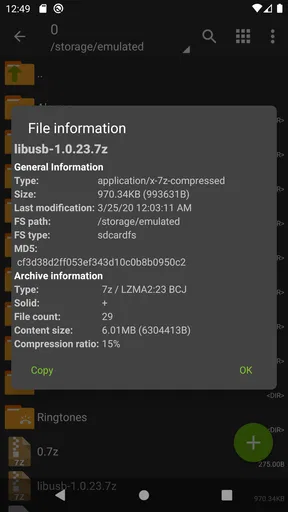
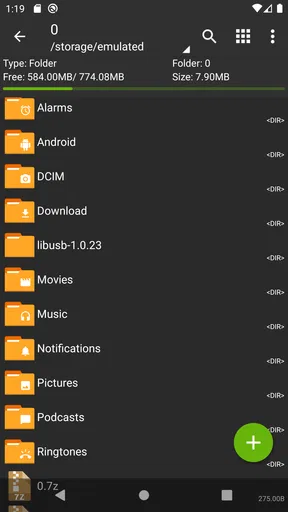
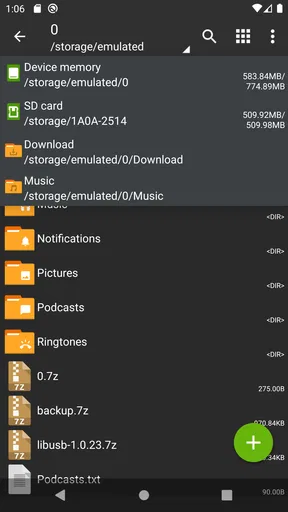
 Analysis by AppCompare
Archive problems often show up at the least convenient time: a document arrives in a compressed folder just before a meeting, or a download contains several files that need sorting before you can use them. I like having a dedicated tool for those moments, and ZArchiver is built around handling compressed files directly on Android. It comes from ZDevs, is free, and has a 4.1 average from around 1.4 million ratings. That kind of long-running popularity makes it an easy app to consider, though whether it suits you depends on how often you work with archives and how much control you want.
When the archive depends on a connection
The app’s usefulness often begins before you open it: a browser, email client, or messaging app brings an archive onto your phone, and then you need a way to inspect or extract it. ZArchiver handles the file-management part of that chain. The network still matters for receiving or sending the file, but the archive work itself is a separate step. I find that distinction helpful because it makes clear where a delay is coming from: a slow download is not the same problem as an archive that is difficult to open.
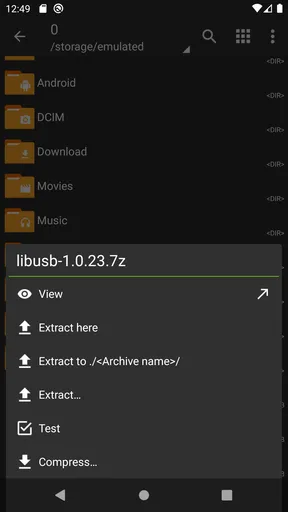
For example, if a colleague sends a ZIP with several documents, I can locate the downloaded archive, inspect its contents, and extract only what I need rather than unpacking everything by habit. That can keep a crowded Downloads folder more manageable. If the file has not finished arriving, however, an archive manager cannot make the missing data appear; I would first check the transfer in the app that received it, then return to the file once it is complete.
Made for practical phone use
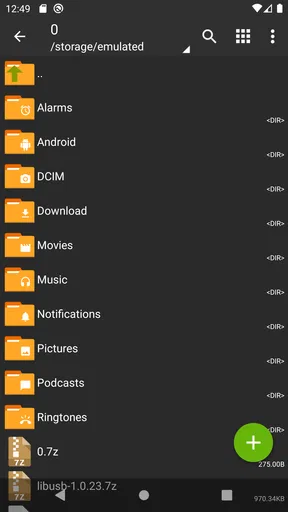
On a small screen, I care more about clear file navigation than decorative effects. The interface has a traditional file-browser feel, which may look dated beside more polished storage apps, but it keeps the central task recognizable: find a folder, choose an archive, and decide what to do with it. ZArchiver is a tools app rather than a general-purpose cloud drive, so I would not choose it to organize a remote library or replace the file-sharing service I already use.
It is most useful for people who regularly receive compressed project folders, save bundles of photos or documents, or move files between a phone and other devices. Someone who only opens an archive once in a while may be perfectly happy with the basic extraction option built into a file manager. I would still keep ZArchiver in mind if those occasional files turn out to include split parts, password protection, or formats the built-in tool does not handle comfortably.
A practical phone workflow is to download an archive over Wi-Fi when a large transfer would be inconvenient on mobile data, then use the app to inspect it and extract just the needed material. That is a choice about how you receive the file, not a special network feature of the archive manager. It also helps avoid creating multiple unnecessary copies: check the archive’s contents first, select a sensible destination, and share the extracted file only when you are ready.
Unpacking the Basics
ZArchiver is one of those apps that you don't think you need until you start using it. It’s designed to help you manage compressed files right on your phone, and it supports a ton of formats, including the popular ZIP, RAR, and 7z. No more transferring files to your computer just to open them. You can do it all on your device!
Worth Reading Before You Choose

Flipboard Shows What News Apps Must Do Beyond the Feed

Switching to Android Auto Means Rethinking Your Driving Routine

Google Calendar Makes a Crowded Week Easier to Manage

Ludo King Makes the Most of the Minutes Between Plans

Baby Panda World Brings Quick Play to Modern Phones, but Its Game Library Feels Busy

ESPN’s Live Game View Makes Following Close Games Easier
Setting up ZArchiver is straightforward. Download it from the Play Store, and boom, you’re ready to go. The interface might seem a bit old-school, but it’s intuitive. You won’t find any flashy graphics or animations here, just pure functionality. And honestly, that’s what I appreciate about it.
A Deep Dive into Features
Let’s talk about features, because ZArchiver has quite a few. First off, it supports multi-threading, which is great if you’re on a powerful device and want to speed up your operations. You can also password-protect your archives, which is a nice touch for those sensitive files.
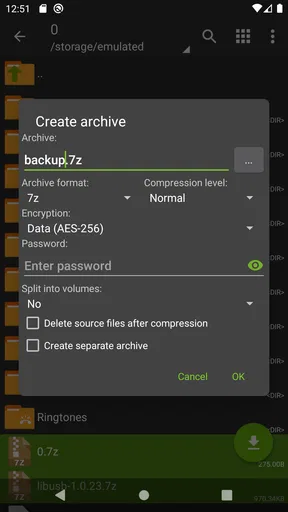
One of my favorite features is the ability to create and decompress split archives. It’s super handy if you’re dealing with large files and need to break them down into smaller parts. Plus, you can modify archives without having to unpack them first. That’s a real time-saver!
Split archives are worth treating carefully on a phone. Their parts usually belong together, so I would keep them in the same folder and make sure each part has finished downloading before trying to extract the set. If one arrives late or is missing, the extraction can fail even though the archive manager is working as expected. When creating parts, think about the person who will receive them: they need the complete set, not just the first piece. This workflow is useful for moving bulky material in manageable chunks, but it adds coordination that a single archive does not require.
Password protection is another feature where convenience and responsibility meet. It can help keep casual viewers from opening an archive, but it is not a substitute for choosing a password you can reliably recover or for handling the password through a separate, sensible channel. If you send a protected archive through a messaging app, sending the password in the same conversation may defeat the point. For everyday sharing, I use protection only when the contents justify the extra step and I know the recipient can open it.
And for all you theme lovers out there, ZArchiver lets you tweak the app’s appearance. Choose from light or dark mode, or go wild with custom colors. It’s nothing groundbreaking, but hey, it’s nice to have options.
Where it fits among file tools
ZArchiver has been around since January 24, 2012, and its current version is 1.0.10. It has passed 100 million installs, which suggests it has become a familiar option for Android users who need archive handling. It is rated for Everyone. Those details matter less to me than the practical fit: this is a focused utility for creating, browsing, and unpacking archives, not a complete file-management system with every storage task under one roof.
Compared with a phone’s built-in file browser, a dedicated archive app can be a better choice when you need more control over formats, passwords, split files, or changes inside an archive. The trade-off is another app and another interface to learn. Compared with moving the archive to a desktop computer, working on the phone is more convenient when the file is already there and the task is modest; a computer is still preferable when you need a large screen, detailed file comparison, or a long sequence of careful edits.
One useful habit is to open an archive and review its contents before extracting it. That lets you avoid unpacking a folder full of duplicate or irrelevant items, and it gives you a chance to choose a destination that makes sense. When the goal is simply to send the original archive onward, there may be no reason to extract it at all. When the goal is to edit one item, the ability to modify an archive without first unpacking everything can reduce unnecessary steps, though I would still verify the result before deleting the source file.
Everyday Use
In my day-to-day use, ZArchiver has been a reliable companion. Whether I’m downloading music files or transferring documents, it just works. The app doesn’t hog resources, so you won’t notice a slowdown when it’s running in the background.
What’s more, it plays well with other apps. Need to send a compressed file via email or a messaging app? ZArchiver makes it easy. Just find the file, hit the share button, and you’re golden.
That handoff is especially useful when the archive is only one step in a longer mobile task. I might receive a bundle in a chat, extract the one document I need, and share that document with another app instead of forwarding the whole bundle. If I need to send an archive, I can choose the compressed file itself. This keeps ZArchiver in its proper role: it handles the archive, while the messaging or email app handles delivery. For a file that is still being uploaded or downloaded, I would wait for the transfer to finish before judging whether the archive can be opened.
Navigating through the app is straightforward. You have your typical file explorer setup, and everything is neatly organized. Even if you’re not tech-savvy, you’ll find your way around without much trouble.
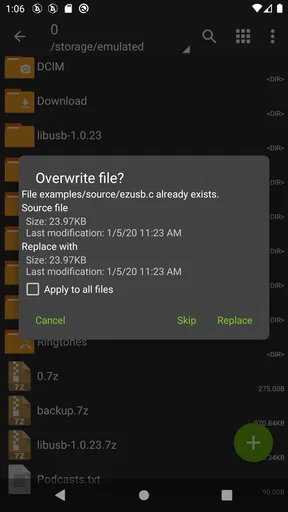
The main friction is that file operations reward a little attention. Before extracting, I check the target folder so I do not scatter files across the device. Before deleting anything, I confirm whether I am looking at the original archive or an extracted copy. That is not unique to this app, but it is easy to make a mess when several folders have similar names and you are tapping through them on a small screen. A quick pause to verify the path is often faster than cleaning up afterward.
When another approach is better
If you rarely download compressed files and your existing file manager opens the archives you encounter, adding another utility may not improve your routine. If you mostly need cloud syncing, collaborative access, or remote file storage, a cloud service is a better match; ZArchiver’s job is archive handling on the device, not keeping a shared library current across devices. And if a task involves extensive file organization, repeated comparisons, or precision editing, I would rather use a desktop file manager than try to do everything through a phone interface.
Likewise, I would not treat a password-protected archive as a guarantee that sensitive information is safe in every situation. The feature is useful, but the strength of the password and how you share it still matter. For files that are important, I would keep the original until I have checked the extracted copy and confirmed that the recipient can open what I sent. That small verification step is especially worthwhile when a transfer crosses several apps or includes multiple archive parts.
Wrapping It Up
So, is ZArchiver worth downloading? Absolutely. It’s a powerhouse for anyone who deals with compressed files regularly. While the interface might not win any design awards, its functionality is top-notch. With support for a wide range of formats and a slew of handy features, it’s a must-have tool in your Android arsenal.
If you’re ready to take control of your file management and make your life a bit easier, give ZArchiver a try. It’s free, it’s effective, and it might just become your new favorite app. Happy archiving!
Pros
- Supports multiple archive formats efficiently.
- User-friendly interface with intuitive navigation.
- No advertisements for a smooth user experience.
- Full control over file compression settings.
- Lightweight app with fast performance.
Cons
- Limited cloud storage integration options.
- No built-in file preview for archives.
- Advanced features may confuse beginners.
- Requires manual updates for compression formats.
- Some features locked behind a paywall.
FAQs for ZArchiver
What is ZArchiver, and what can I use it for?
ZArchiver is a powerful Android application designed to manage archives. It supports a wide range of formats like ZIP, RAR, 7z, and more. Users can create, decompress, and view archive contents directly on their device, making it essential for managing files without needing a computer.
Is ZArchiver safe to use on my device?
Yes, ZArchiver is considered safe to use. It doesn’t require internet access, which enhances security by preventing unauthorized data sharing. However, always download from trusted sources like the Google Play Store to avoid malicious versions.
Does ZArchiver support password-protected archives?
Absolutely, ZArchiver allows users to open and create password-protected archives. This feature is particularly useful for securing sensitive data, providing an extra layer of protection for your files when sharing or storing them.
Can I use ZArchiver to compress files and save space?
Yes, ZArchiver offers efficient file compression, which can significantly reduce the size of files and folders. This functionality helps save storage space on your device and is ideal for sharing large files via email or cloud services.
Are there any ads or in-app purchases in ZArchiver?
ZArchiver is available for free without intrusive ads, providing a seamless user experience. There is also a Pro version available, which offers additional features and enhancements for those requiring more advanced functionality.


